# docs/options.md
# Options Page
The Extension Options and Settings.
[[toc]]
## Keyboard Shortcuts
You can configure keyboard shortcuts for the following actions.
- Show Popup
- Open Files
- Open Side Panel
- Open Zipline
_Refer to your browser's documentation on how to set keyboard shortcuts._
## Credentials
These are the credentials stored when you [authenticate](../guides/get-started.md#automatic-setup) with your server.
- Zipline URL
- Zipline Token
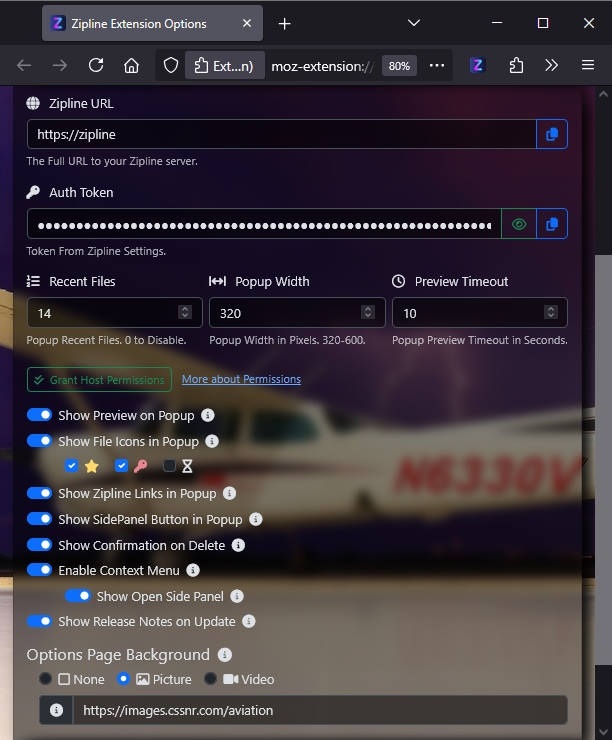
## Options
### Inputs
- **Recent Files** - Number, of files to show in the popup/sidebar.
- **Popup Width** - Number. Width of the popup in pixels when popped in.
- **Preview Timeout** - Number. Timeout of the on-hover image preview.
### Switches
- **Show Preview on Popup** - Show image preview on hover.
- **Show File Icons in Popup** - Icons to show in file list.
- **Show Zipline Links in Popup** - Show links to files, upload, settings.
- **Show SidePanel Button in Popup** - Show side panel button on popup.
- **Show Confirmation on Delete** - Show confirmation on deleting files.
- **Enable Context Menu** - Show right-click context menu for uploading.
- **Show Open Side Panel** - Show open side panel in context menu.
- **Show Release Notes on Update** - Show release notes on new version.
---
# docs/popup.md
# Extension Popup
This covers the Popup, Side Panel, and Extension Panel (Popout).
[[toc]]
## Files
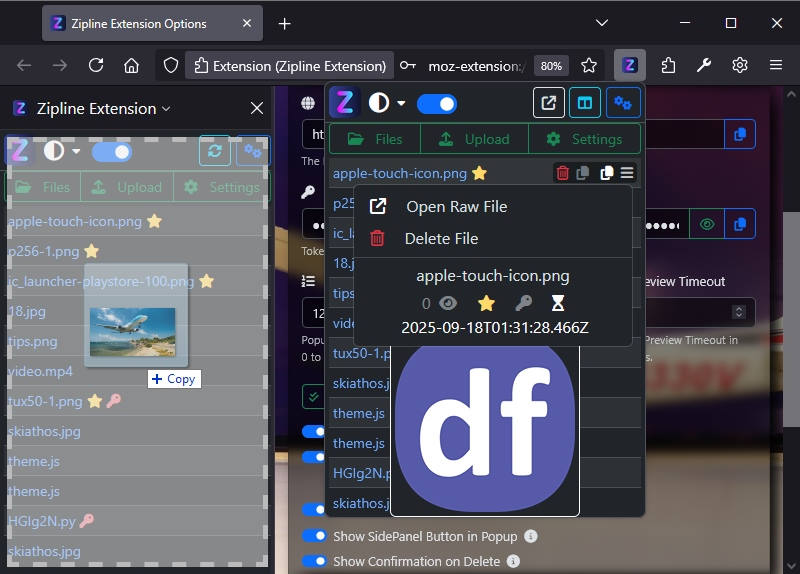
- Drag and Drop to Upload Files.
- Displays your Recent Files.
- Shows an Image Preview on Hover.
- Delete or Edit Password or Favorite.
- Copy Share Links or Download.
## Controls
- Show in Side Panel
- Popout the Popup
- Open Options
- Toggle Previews
- Change Theme
- Links to Server
---
# guides/features.md
# Features
[[toc]]
## Overview
- View Recent Uploads on Popup/Side Panel.
- Auto Preview on Mouseover Links.
- Including Edit, Delete, Copy, and More...
- Customize Icons, Width and Number of Files.
- Drag and Drop Upload from Popup and Side Panel.
- Right Click any Image, Video, or Audio to Upload.
- Right Click any URL to Create a new Short URL.
- Automatically Authenticate with your Zipline Server.
- Automatic Dark/Light Mode based on Browser Settings.
::: info
Missing a feature? Submit a [Feature Request](https://github.com/cssnr/zipline-extension/issues/new?template=1-feature.yaml) and we will get it added!
:::
## Screenshots
---
# guides/get-started.md
# Get Started
Get started by [installing](#install) the extension and [connecting](#setup) to your [server](#server).
You can also view the [features](features.md) and [screenshots](features.md#screenshots) 📸.
## Install
Microsoft Edge, Opera, Brave, Chromium, Vivaldi, Waterfox, and More.
Available for all major browsers including [Firefox Android](https://addons.mozilla.org/addon/zipline-extension).
- [Chrome Web Store](https://chromewebstore.google.com/detail/zipline-extension/gkkloiijbkgkbmgckfefigkjckhdikkd)
- [Mozilla Addons](https://addons.mozilla.org/addon/zipline-extension)
::: details View QR Codes 📸
[](https://addons.mozilla.org/addon/zipline-extension)
[](https://chromewebstore.google.com/detail/zipline-extension/gkkloiijbkgkbmgckfefigkjckhdikkd)
:::
## Setup
### Manual Setup
1. Open the Extension Options _(1 of 3 ways)_.
- Click the Toolbar Icon > Settings Icon.
- Use the Right Click Menu > Settings.
- Use the Keyboard Shortcut for Settings.
2. Enter your Zipline URL and Auth Token.
::: tip ❔ HELP
If you have any trouble getting started, [support is available](../support.md).
:::
### Automatic Setup
::: warning
You must use [Manual Setup](#manual-setup) starting with Zipline v4.4.1 or later.
:::
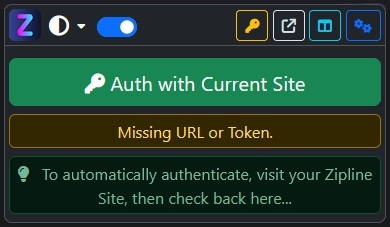
::: details View Automatic Setup
1. Navigate to your Zipline Dashboard.
2. Activate the Popup _(1 of 3 ways)_.
- Click the Toolbar Icon.
- Use the Right Click Menu.
- Use the Keyboard Shortcut.
3. Click **Authenticate with Current Site**.
:::
## Server
This guide assumes you have a [diced/zipline](https://github.com/diced/zipline) server setup and accessible.
Otherwise, you can [get started here](https://zipline.diced.sh/docs/get-started).
Only Version 4 is supported.
---
# support.md
# Support
[](https://github.com/cssnr/zipline-extension/issues/new?template=1-feature.yaml)
[](https://github.com/cssnr/zipline-extension/issues)
[](https://github.com/cssnr/zipline-extension/discussions)
[](https://discord.gg/wXy6m2X8wY)
If you have any troubles using the application, or run into any issues, please let us know!
Every bug that can be reproduced will be fixed and Feature Request are highly desired.
Contributing is as easy as telling us [what features or changes](https://github.com/cssnr/zipline-extension/issues/new?template=1-feature.yaml) you want to see next…
[[toc]]
### GitHub Discussions
If you have a question or need help with anything,
start a discussion in [General](https://github.com/cssnr/zipline-extension/discussions/categories/general)
or [Q&A](https://github.com/cssnr/zipline-extension/discussions/categories/q-a).
If you want to see a new feature, submit a [Feature Requests](https://github.com/cssnr/zipline-extension/issues/new?template=1-feature.yaml).
[](https://github.com/cssnr/zipline-extension/discussions)
### GitHub Issues
If you run into any problems or find a bug, please [open an issue](https://github.com/cssnr/zipline-extension/issues).
**These reports are treated with the highest priority.**
[](https://github.com/cssnr/zipline-extension/issues)
### Discord Chat
You can chat with us about anything [on discord](https://discord.gg/wXy6m2X8wY).
From here you can contact me directly, `Shane@111150265075298304`.
[](https://discord.gg/wXy6m2X8wY)
### Additional Links
View more Zipline products.
- [Zipline CLI](https://zipline-cli.cssnr.com/) - [Source Code](https://github.com/cssnr/zipline-cli?tab=readme-ov-file#readme)
- [Zipline Web Extension](https://zipline-extension.cssnr.com/) - [Source Code](https://github.com/cssnr/zipline-extension?tab=readme-ov-file#readme)
- [Zipline Android Application](https://zipline-android.cssnr.com/) - [Source Code](https://github.com/cssnr/zipline-android?tab=readme-ov-file#readme)